How to
From guest list spreadsheet to seating chart
Your spreadsheet already knows most of the seating chart: who came together, who declined, whose side they are on. Here is how to carry that across.
Updated
Most couples keep their guest list in a spreadsheet or a wedding website long before they think about tables. Retyping it into a seating tool is slow and easy to get wrong. Importing it is faster, but only if the sheet says the things a seating chart needs: who belongs together, who is not coming, and which side of the family each guest is from.
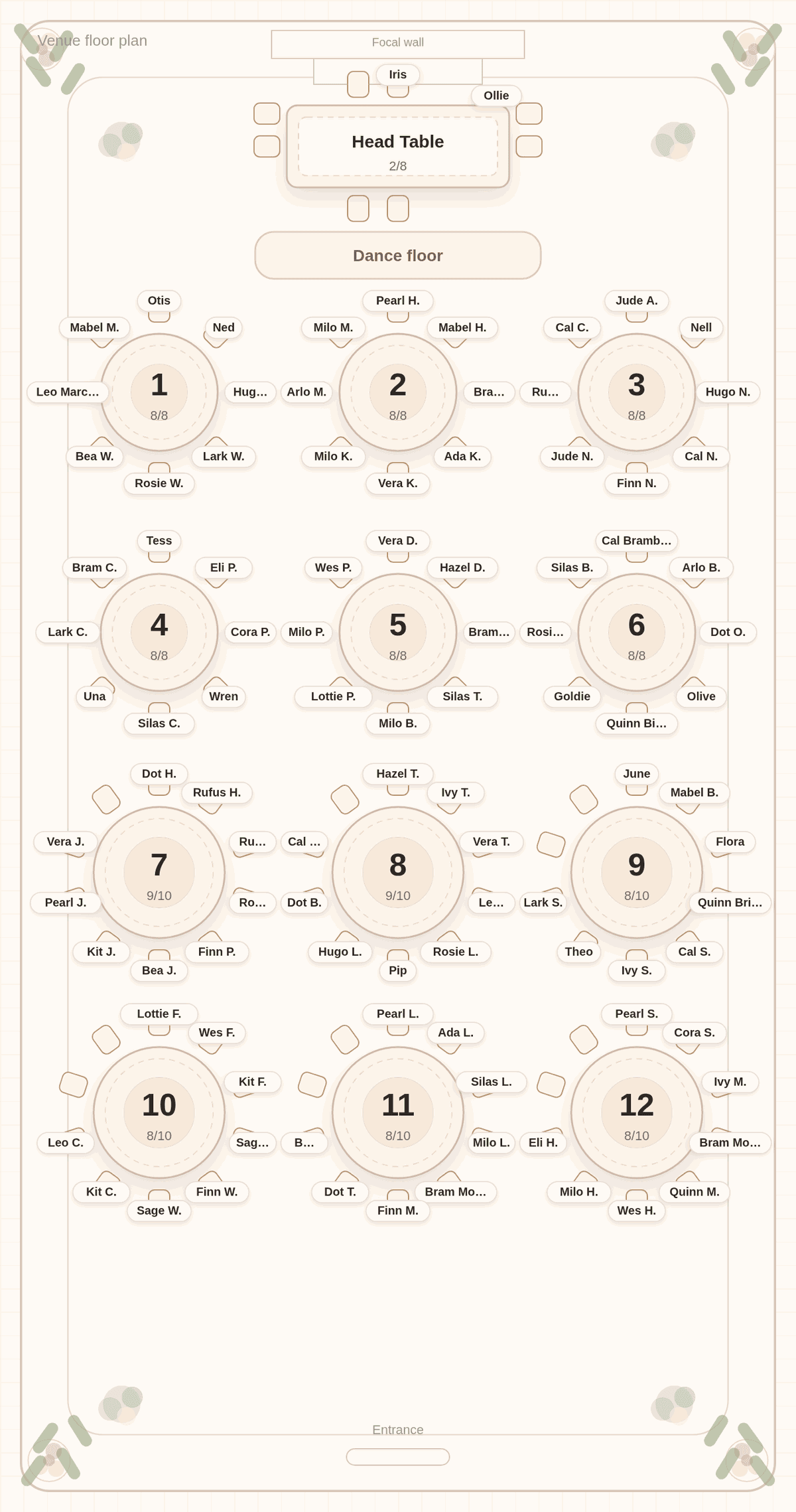
The chart below came straight from a spreadsheet. We made up a 104-row CSV with First Name, Last Name, Party, RSVP and Side columns, four of them marked declined, and imported it into Tablecharm. The import read "100 guests, 38 groups, 4 rows skipped". We tagged the couple for the head table, accepted the room plan and solved.
The columns that matter
A seating chart needs less than a guest list does. Addresses, emails and meal choices can stay in the sheet. These are the columns worth having:
- A name, either one Name column or First Name and Last Name.
- A party or household column, so people who came together stay together.
- An RSVP column, so declines drop out on their own.
- Optionally, a side column (A, B or Both) and a tags or notes column.
Tablecharm matches these by header name, not by position, and it ignores columns it does not recognize. The import page lists every header it reads, including the common spellings.
Households come from the Party column
The single most useful column is the one that groups people: Party, Household, Family or Group. Every row with the same value becomes one household, and a household always sits at the same table. In our sheet, the 100 attending guests fell into 38 parties, and the solver never split one.
If your sheet has one row per household with a partner or children in extra columns, the import reads those too, and a plus-one column adds a placeholder guest to that household. Rename any placeholders before printing; the print checklist counts them.
Declines drop out, blanks stay in
An RSVP column does real work. Tablecharm skips a row only when that column says the guest declined ("No", "Declined", "Regrets" and similar). A blank cell, "Pending" or "Maybe" keeps the guest in, because a missing answer is not a no.
That is why our import says "4 rows skipped": the four declined rows. The rows with no answer yet are seated, which is exactly what you want in a draft. The guide on starting before all RSVPs are in explains why.
Sides and tags, if you have them
If your sheet marks each guest's side, keep that column. Tablecharm reads A, B, Both (and "Partner A", "Partner B", "Mutual"), and the solver prefers not to mix the two families at a table unless guests are marked Both. It is a gentle preference, not a rule.
A Tags or Notes column works the same way as tags typed in the editor. Separate tags with commas, like "college, book club". Guests who share a tag lean toward the same table.
Where to get the file
Wedding websites and spreadsheets all export CSV. There are step-by-step pages for Zola, The Knot, Joy and Google Sheets. One caution: the RSVP skip works on columns named RSVP, Status, Response or Attending, and The Knot and Joy exports use their own headings, so delete declined guests from those files before you import. Whatever the source, glance at the guest count after import. If it looks high, filter out declines in the sheet and import again.
If the same name appears twice, for example two guests called Rosie Honeywell, Tablecharm stops and asks whether they are two people or one repeated row before it adds them.
Questions couples ask
Can I import my guest list from Excel?
Yes. Save the sheet as CSV (File, Save As, CSV) and import that file. Tablecharm reads CSV files, which every spreadsheet program can write.
Will declined guests be seated?
Not if your sheet has an RSVP column that says so. Rows marked declined are skipped. Rows with a blank or pending answer are kept, so the draft seats everyone who has not said no.
How does the import know who came together?
From a Party, Household, Family or Group column. Every row with the same value becomes one household, and households always sit at the same table.
Do I need a side column?
No. It helps if you want the two families mostly at their own tables, but everything else works without it.
Start with your list
Paste your names below, one household per line, and solve. The full CSV import is one tap away inside the editor.
No list handy? Try it with a sample list first. The editor and solver are free, with every table readable in preview. Payment is for final files and the guest link.

Useful next
- Import your guest list: every column the import reads
- From Google Sheets: download as CSV, then import
- From Zola: export your guest list
- Coming from Zola?: what carries over